Monday, 8 August 2022

Atlas Client: update classifications of an entity by id

AtlasClientV2#updateClassifications method is used to update classifications of an entity.


Signature

public void updateClassifications(String guid, List<AtlasClassification> classifications) throws AtlasServiceException

 For example, as you see below image, the entity ‘AttributeWithListOfStrings_DEMO1’ has a classification ‘sensitive_data’ associated with it, where the attribute ‘durationInDays’ is set to 10.


Below snippet update the attribute ‘durationInDays’ to 123.

String entityGuid = "ff459f6e-8ea4-4e0b-a62b-45dda2247ea8";

AtlasClassification atlasClassification = new AtlasClassification();
atlasClassification.setTypeName("sensitive_data");
atlasClassification.setAttribute("durationInDays", 123);
atlasClassification.setEntityGuid(entityGuid);
atlasClassification.setPropagate(false);
atlasClassification.setRemovePropagationsOnEntityDelete(false);
atlasClassification.setValidityPeriods(Collections.EMPTY_LIST);

atlasClient.updateClassifications(entityGuid, Arrays.asList(atlasClassification));

Find the below working application.


Create atlas-application.properties file under src/main/resources folder.


atlas-application.properties

atlas.client.readTimeoutMSecs=30000
atlas.client.connectTimeoutMSecs=30000

Define UpdateClassificationOfEntityById class.


UpdateClassificationOfEntityById.java

package com.sample.app.classifications;

import java.util.Arrays;
import java.util.Collections;

import org.apache.atlas.AtlasClientV2;
import org.apache.atlas.AtlasServiceException;
import org.apache.atlas.model.instance.AtlasClassification;

public class UpdateClassificationOfEntityById {

    public static void main(String[] args) throws AtlasServiceException {
        AtlasClientV2 atlasClient = new AtlasClientV2(new String[] { "http://localhost:21000" },
                new String[] { "admin", "admin" });

        String entityGuid = "ff459f6e-8ea4-4e0b-a62b-45dda2247ea8";

        AtlasClassification atlasClassification = new AtlasClassification();
        atlasClassification.setTypeName("sensitive_data");
        atlasClassification.setAttribute("durationInDays", 123);
        atlasClassification.setEntityGuid(entityGuid);
        atlasClassification.setPropagate(false);
        atlasClassification.setRemovePropagationsOnEntityDelete(false);
        atlasClassification.setValidityPeriods(Collections.EMPTY_LIST);

        atlasClient.updateClassifications(entityGuid, Arrays.asList(atlasClassification));

    }

}

Output


Previous                                                    Next                                                    Home

HIVE: Select specific columns

Syntax

select column1, column2…column from {table_name} where {condition}


hive> select * from employee;
OK
1   Hari    ["Football","Cricket"]  {"Java":"3.4Yrs","C":"4.5Yrs"}  {"gender":"Male","age":30}
2   Chamu   ["Trekking","Watching movies"]  {"Selenium":"5.6Yrs"}   {"gender":"Feale","age":38}
3   Sailu   ["Chess","Listening to music"]  {"EmbeddedC":"9Yrs"}    {"gender":"Femle","age":32}
4   Gopi    ["Cricket"] {"Datastage":"11Yrs"}   {"gender":"Male","age":32}
Time taken: 0.072 seconds, Fetched: 4 row(s)


a. Select name and gender of all the employees

hive> select name, gender_age.gender from employee;
OK
Hari    Male
Chamu   Feale
Sailu   Femle
Gopi    Male
Time taken: 0.079 seconds, Fetched: 4 row(s)


b. Select name, gender, age of employees whose age is > 30.

hive> select name, gender_age.gender, gender_age.age from employee where gender_age.age>30;
OK
Chamu   Feale   38
Sailu   Femle   32
Gopi    Male    32
Time taken: 0.09 seconds, Fetched: 3 row(s)


Previous                                                    Next                                                    Home

PostgreSQL: Describe Table

In this post, I am going to explain different approaches to get the information about a table.


Step 1: Using \d+  or \d command.


\d+ table_name
\d table_name


Login to Postgres shell.

sh-3.2$ psql -U postgres -h localhost --dbname=test
Password for user postgres: 
psql (14.4)
Type "help" for help.


Let’s see the tables in test database using the command \d.

test=# \d
           List of relations
 Schema |   Name    | Type  |  Owner   
--------+-----------+-------+----------
 public | contact   | table | postgres
 public | employees | table | postgres
(2 rows)

Let’s get the description of contact table using \d+ command.

test=# \d+ contact
                                                   Table "public.contact"
   Column   |          Type          | Collation | Nullable | Default | Storage  | Compression | Stats target | Description 
------------+------------------------+-----------+----------+---------+----------+-------------+--------------+-------------
 id         | integer                |           | not null |         | plain    |             |              | 
 age        | integer                |           |          |         | plain    |             |              | 
 firstname  | character varying(255) |           |          |         | extended |             |              | 
 lastname   | character varying(255) |           |          |         | extended |             |              | 
 middlename | character varying(255) |           |          |         | extended |             |              | 
Indexes:
    "contact_pkey" PRIMARY KEY, btree (id)
Access method: heap


\d table command return minified version of \d+ output

test=# \d contact
                        Table "public.contact"
   Column   |          Type          | Collation | Nullable | Default 
------------+------------------------+-----------+----------+---------
 id         | integer                |           | not null | 
 age        | integer                |           |          | 
 firstname  | character varying(255) |           |          | 
 lastname   | character varying(255) |           |          | 
 middlename | character varying(255) |           |          | 
Indexes:
    "contact_pkey" PRIMARY KEY, btree (id)

Approach 2: By querying information_schema


Syntax

SELECT 
   *
FROM 
   information_schema.columns
WHERE 
   table_name = {TABLE_NAME};

Example

SELECT table_name, column_name, column_default, is_nullable, data_type FROM information_schema.columns WHERE table_name = 'contact';

test=# SELECT table_name, column_name, column_default, is_nullable, data_type FROM information_schema.columns WHERE table_name = 'contact';
 table_name | column_name | column_default | is_nullable |     data_type     
------------+-------------+----------------+-------------+-------------------
 contact    | id          |                | NO          | integer
 contact    | age         |                | YES         | integer
 contact    | firstname   |                | YES         | character varying
 contact    | lastname    |                | YES         | character varying
 contact    | middlename  |                | YES         | character varying
(5 rows)


Previous                                                 Next                                                 Home

Sunday, 7 August 2022

Connect to PostgreSQL with JDBC driver

In this post, I am going to explain how to create, insert and query the table using JDBC.


Prerequisite

Setup Postgresql.


Dependencies used

<dependency>
    <groupId>org.postgresql</groupId>
    <artifactId>postgresql</artifactId>
    <version>42.4.1</version>
</dependency>


Create a test database

Open a terminal and execute below command to create ‘test’ database.

createdb -U postgres -h localhost test


Refer this link (https://self-learning-java-tutorial.blogspot.com/2019/05/postgres-create-database.html)  for more details.


JDBC to connect to test database and interact with a table

Step 1: Get an instance of database connection object.

final String url = "jdbc:postgresql://127.0.0.1:5432/test";
final String userName = "postgres";
final String pasword = "postgres";

final Connection conn = DriverManager.getConnection(url, userName, pasword);

Step 2: Get a Statement object.

final Statement stmt = conn.createStatement();

Step 3: Create a table by executing the query,

String query = "CREATE TABLE employee (id int, name varchar(30), PRIMARY KEY(id))";
stmt.execute(query);

Step 4: Insert some records into employee table.

query = "INSERT INTO employee values(1, 'Krishna')";
stmt.execute(query);
query = "INSERT INTO employee values(2, 'Arjun')";
stmt.execute(query);

Step 5: Query employee table and print the information.

query = "SELECT * FROM employee";

try (final ResultSet rs = stmt.executeQuery(query)) {
    while (rs.next()) {
        int id = rs.getInt("id");
        String name = rs.getString("name");
        System.out.println(id + " " + name);
    }
}

Find the below working application.


HelloWorld.java

package com.sample.app;

/*Import sql package entities */
import java.sql.Connection;
import java.sql.DriverManager;
import java.sql.ResultSet;
import java.sql.SQLException;
import java.sql.Statement;

public class HelloWorld {
    public static void main(String args[]) throws SQLException, ClassNotFoundException {

        /* Open connection to database */
        System.out.println("Connecting to database");
        final String url = "jdbc:postgresql://127.0.0.1:5432/test";
        final String userName = "postgres";
        final String pasword = "postgres";

        try (final Connection conn = DriverManager.getConnection(url, userName, pasword);
                final Statement stmt = conn.createStatement();) {

            /* Query to create employee table */
            String query = "CREATE TABLE employee (id int, name varchar(30), PRIMARY KEY(id))";
            stmt.execute(query);

            /* Insert data to employee table */
            query = "INSERT INTO employee values(1, 'Krishna')";
            stmt.execute(query);
            query = "INSERT INTO employee values(2, 'Arjun')";
            stmt.execute(query);

            query = "SELECT * FROM employee";

            try (final ResultSet rs = stmt.executeQuery(query)) {
                while (rs.next()) {
                    int id = rs.getInt("id");
                    String name = rs.getString("name");
                    System.out.println(id + " " + name);
                }
            }
        }

    }
}

Run the application, you will see below messages in the console.

Connecting to database
1 Krishna
2 Arjun

Query the table from psql console and confirm the same.

$psql -U postgres -h localhost --dbname=test
Password for user postgres: 
psql (14.4)
Type "help" for help.

test-# \d
          List of relations
 Schema |   Name   | Type  |  Owner   
--------+----------+-------+----------
 public | employee | table | postgres
(1 row)

test-# 
test=# SELECT * FROM employee;
 id |  name   
----+---------
  1 | Krishna
  2 | Arjun
(2 rows)

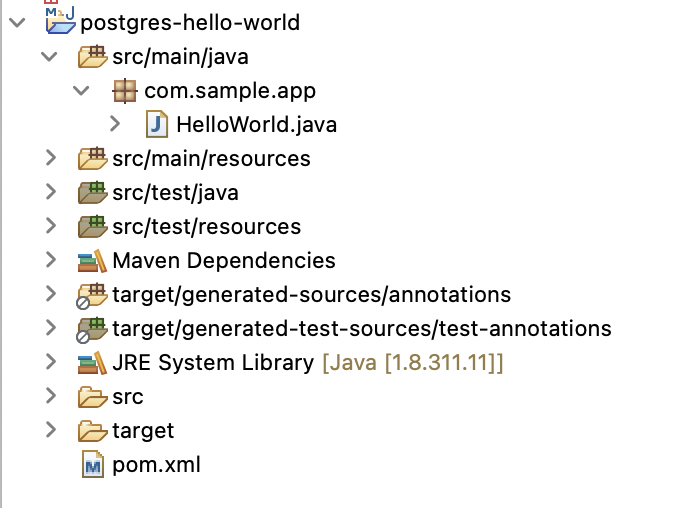
Complete maven project structure looks like below.


You can download complete working application from this link.


Previous                                                 Next                                                 Home

Command to check CPU temperature in Mac

Often you might need to check the CPU temperature. Following command print the CPU temperature periodically.

sudo powermetrics --samplers smc |grep -i "CPU die temperature"


Note

powermetrics command should be run in sudo mode.

You may like

Miscellaneous

Public, private key generation in Java

Export public key certificate from keystore

Read pkcs12 certificate information in Java

How to Get Client Certificate from HttpServletRequest

Programmatically import certificate to cacerts file in Java

How to get the decimal grouping character for given locale?

Send the jmh log messages to a file

By setting the output file path using OptionsBuilder, we can send the log messages to a file.


Example

Options opt = new OptionsBuilder()
.include(SendLogMessagesToAFile.class.getSimpleName())
.forks(1)
.measurementIterations(4)
.warmupIterations(3)
.resultFormat(ResultFormatType.JSON)
.output("/Users/Shared/logMessages.log")
.build();


Above snippet send the log messages to the file "/Users/Shared/ logMessages.log".


Find the below working application.


SendLogMessagesToAFile.java
package com.sample.app;

import java.util.concurrent.TimeUnit;

import org.openjdk.jmh.annotations.Benchmark;
import org.openjdk.jmh.results.format.ResultFormatType;
import org.openjdk.jmh.runner.Runner;
import org.openjdk.jmh.runner.RunnerException;
import org.openjdk.jmh.runner.options.Options;
import org.openjdk.jmh.runner.options.OptionsBuilder;

public class SendLogMessagesToAFile {
    
    @Benchmark
    public void test1() throws InterruptedException {
        TimeUnit.MILLISECONDS.sleep(300);
    }
    
    public static void main(String[] args) throws RunnerException {
        Options opt = new OptionsBuilder()
                .include(SendLogMessagesToAFile.class.getSimpleName())
                .forks(1)
                .measurementIterations(4)
                .warmupIterations(3)
                .resultFormat(ResultFormatType.JSON)
                .output("/Users/Shared/logMessages.log")
                .build();

        new Runner(opt).run();
    }
}

Run the above application and open the file ‘/Users/Shared/logMessages.log’ to see the log messages.


Previous                                                 Next                                                 Home