Friday, 8 June 2018

JavaFx: Form example using GridPane

LoginForm.java
package com.sample.demos;

import java.io.FileNotFoundException;
import java.net.MalformedURLException;

import javafx.application.Application;
import javafx.geometry.Insets;
import javafx.scene.Scene;
import javafx.scene.control.Button;
import javafx.scene.control.TextField;
import javafx.scene.layout.GridPane;
import javafx.scene.layout.HBox;
import javafx.stage.Stage;

public class LoginForm extends Application {

 @Override
 public void start(Stage primaryStage) throws FileNotFoundException, MalformedURLException {
  GridPane grid = new GridPane();
  grid.setPadding(new Insets(10, 10, 10, 10));
  grid.setVgap(5);
  grid.setHgap(5);

  TextField userName = new TextField();
  userName.setPromptText("Enter your name");
  GridPane.setConstraints(userName, 0, 0);
  grid.getChildren().add(userName);

  TextField password = new TextField();
  password.setPromptText("Enter password");
  GridPane.setConstraints(password, 0, 1);
  grid.getChildren().add(password);

  Button button = new Button("SignIn");
  Button clear = new Button("Clear");

  HBox hBox = new HBox(10, button, clear);

  GridPane.setConstraints(hBox, 0, 2);
  grid.getChildren().add(hBox);

  Scene scene = new Scene(grid, 500, 300);

  /* Set the scene to primaryStage, and call the show method */
  primaryStage.setTitle("JavaFX Form Example");
  primaryStage.setScene(scene);
  primaryStage.show();
 }

}


TestFX.java
package com.sample.demos;

import javafx.application.Application;

public class TestFX {
 public static void main(String args[]) {
  Application.launch(LoginForm.class, args);
 }
}



Previous                                                 Next                                                 Home

JavaFx: TextField: Set prompt text

By using 'setPromptText' method of TextField object, you can set the prompt text

Ex
TextField userName = new TextField();
userName.setPromptText("Enter your name");

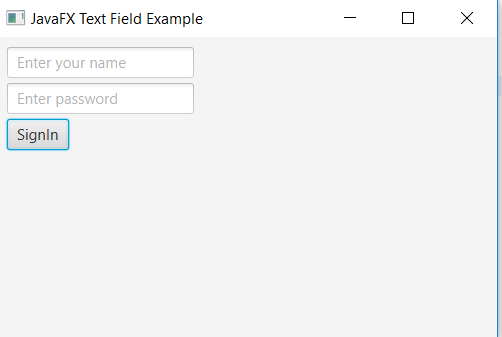
Find the below working example.

TestFieldApp.java
package com.sample.demos;

import java.io.FileNotFoundException;
import java.net.MalformedURLException;

import javafx.application.Application;
import javafx.geometry.Insets;
import javafx.scene.Scene;
import javafx.scene.control.Button;
import javafx.scene.control.TextField;
import javafx.scene.layout.GridPane;
import javafx.stage.Stage;

public class TextFieldApp extends Application {

 @Override
 public void start(Stage primaryStage) throws FileNotFoundException, MalformedURLException {
  GridPane grid = new GridPane();
  grid.setPadding(new Insets(10, 10, 10, 10));
  grid.setVgap(5);
  grid.setHgap(5);

  TextField userName = new TextField();
  userName.setPromptText("Enter your name");
  GridPane.setConstraints(userName, 0, 0);
  grid.getChildren().add(userName);

  TextField password = new TextField();
  password.setPromptText("Enter password");
  GridPane.setConstraints(password, 0, 1);
  grid.getChildren().add(password);

  Button button = new Button("SignIn");
  GridPane.setConstraints(button, 0, 2);
  grid.getChildren().add(button);

  Scene scene = new Scene(grid, 500, 300);

  /* Set the scene to primaryStage, and call the show method */
  primaryStage.setTitle("JavaFX Text Field Example");
  primaryStage.setScene(scene);
  primaryStage.show();
 }

}

TestFX.java

package com.sample.demos;

import javafx.application.Application;

public class TestFX {
 public static void main(String args[]) {
  Application.launch(TextFieldApp.class, args);
 }
}


Previous                                                 Next                                                 Home

Thursday, 7 June 2018

JavaFX: Create TextField widget

TextField class provides below constructors to create TextField widget.

public TextField()
public TextField(String text)

Ex
Label name = new Label("Enter Your Name:");
TextField nameField = new TextField();

Find the below working example.

TextFieldApp.java
package com.sample.demos;

import java.io.FileNotFoundException;
import java.net.MalformedURLException;

import javafx.application.Application;
import javafx.scene.Scene;
import javafx.scene.control.Label;
import javafx.scene.control.TextField;
import javafx.scene.layout.HBox;
import javafx.scene.layout.VBox;
import javafx.stage.Stage;

public class TextFieldApp extends Application {

 @Override
 public void start(Stage primaryStage) throws FileNotFoundException, MalformedURLException {
  Label name = new Label("Enter Your Name:");
  TextField nameField = new TextField();
  HBox hBox1 = new HBox(40, name, nameField);
  
  Label phoneNumber = new Label("Enter Your PhoneNumber:");
  TextField phoneNumberField = new TextField();
  HBox hBox2 = new HBox(40, phoneNumber, phoneNumberField);

  VBox vbox = new VBox(10, hBox1, hBox2);

  Scene scene = new Scene(vbox, 500, 300);

  /* Set the scene to primaryStage, and call the show method */
  primaryStage.setTitle("JavaFX Text Field Example");
  primaryStage.setScene(scene);
  primaryStage.show();
 }

}

TestFX.java
package com.sample.demos;

import javafx.application.Application;

public class TestFX {
 public static void main(String args[]) {
  Application.launch(TextFieldApp.class, args);
 }
}


Previous                                                 Next                                                 Home

JavaFX: TextField widget


TextFiled widget is used to take input from the user.

      Create TextField widget
      Set prompt text
      Form example using GridPane
      Processing text field data
      Clear the text field

Previous                                                 Next                                                 Home

JavaFX: Set the behavior to choice box

By adding change listener to ChoiceBox, you can set the behavior to choice box.

Ex
choiceBox1.getSelectionModel().selectedIndexProperty()
.addListener((ObservableValue<? extends Number> observable, Number oldValue, Number newValue) -> {
         if ((int) oldValue == -1) {
                  System.out.println("Selection changed form none to " + observableList.get((int) newValue));
         } else {
                  System.out.println("Selection changed form " + observableList.get((int) oldValue) + " to "
                                    + observableList.get((int) newValue));
         }

});

Find the below working application.

ChoiceBoxApp.java
package com.sample.demos;

import java.io.FileNotFoundException;
import java.net.MalformedURLException;

import javafx.application.Application;
import javafx.beans.value.ObservableValue;
import javafx.collections.FXCollections;
import javafx.scene.Scene;
import javafx.scene.control.ChoiceBox;
import javafx.scene.control.Separator;
import javafx.scene.control.Tooltip;
import javafx.scene.layout.VBox;
import javafx.stage.Stage;
import javafx.collections.ObservableList;

public class ChoiceBoxApp extends Application {
 private static final Separator SEPARATOR = new Separator();

 @Override
 public void start(Stage primaryStage) throws FileNotFoundException, MalformedURLException {
  ChoiceBox<Object> choiceBox1 = new ChoiceBox<>();
  choiceBox1.setTooltip(new Tooltip("Select the language"));
  ObservableList<Object> observableList = FXCollections.observableArrayList("New", "Open File...", SEPARATOR,
    "close", "close all", SEPARATOR, "save", "save as", "save all");

  choiceBox1.setItems(observableList);

  choiceBox1.getSelectionModel().selectedIndexProperty()
    .addListener((ObservableValue<? extends Number> observable, Number oldValue, Number newValue) -> {
     if ((int) oldValue == -1) {
      System.out.println("Selection changed form none to " + observableList.get((int) newValue));
     } else {
      System.out.println("Selection changed form " + observableList.get((int) oldValue) + " to "
        + observableList.get((int) newValue));
     }

    });

  VBox vbox = new VBox(10, choiceBox1);

  Scene scene = new Scene(vbox, 400, 300);

  /* Set the scene to primaryStage, and call the show method */
  primaryStage.setTitle("JavaFX Choice Box Example");
  primaryStage.setScene(scene);
  primaryStage.show();
 }

}

TestFX.java
package com.sample.demos;

import javafx.application.Application;

public class TestFX {
 public static void main(String args[]) {
  Application.launch(ChoiceBoxApp.class, args);
 }
}


Try to select different options, you can able to see below kind of messges.

Selection changed form none to Open File...
Selection changed form Open File... to save
Selection changed form save to save all
Selection changed form save all to close all


Previous                                                 Next                                                 Home

Wednesday, 6 June 2018

JavaFX: Set tooltip to choice box

By calling 'setTooltip' method, you can set the tool tip to choice box.

Ex
ChoiceBox<Object> choiceBox1 = new ChoiceBox<>();
choiceBox1.setTooltip(new Tooltip("Select the language"));
choiceBox1.setItems(FXCollections.observableArrayList("New", "Open File...", SEPARATOR, "close", "close all",SEPARATOR, "save", "save as", "save all"));

Find the below working application.

ChoiceBoxApp.java
package com.sample.demos;

import java.io.FileNotFoundException;
import java.net.MalformedURLException;

import javafx.application.Application;
import javafx.collections.FXCollections;
import javafx.scene.Scene;
import javafx.scene.control.ChoiceBox;
import javafx.scene.control.Separator;
import javafx.scene.control.Tooltip;
import javafx.scene.layout.VBox;
import javafx.stage.Stage;

public class ChoiceBoxApp extends Application {
 private static final Separator SEPARATOR = new Separator();

 @Override
 public void start(Stage primaryStage) throws FileNotFoundException, MalformedURLException {
  ChoiceBox<Object> choiceBox1 = new ChoiceBox<>();
  choiceBox1.setTooltip(new Tooltip("Select the language"));
  choiceBox1.setItems(FXCollections.observableArrayList("New", "Open File...", SEPARATOR, "close", "close all",
    SEPARATOR, "save", "save as", "save all"));

  VBox vbox = new VBox(10, choiceBox1);

  Scene scene = new Scene(vbox, 400, 300);

  /* Set the scene to primaryStage, and call the show method */
  primaryStage.setTitle("JavaFX Choice Box Example");
  primaryStage.setScene(scene);
  primaryStage.show();
 }

}

TestFX.java

package com.sample.demos;

import javafx.application.Application;

public class TestFX {
 public static void main(String args[]) {
  Application.launch(ChoiceBoxApp.class, args);
 }
}


Previous                                                 Next                                                 Home

Tuesday, 5 June 2018

JavaFX: ChoiceBox: Add separator between choice elements

By creating a Separator object, you can add separator between elements of ChoiceBox.

Ex
Separator SEPARATOR = new Separator();
ChoiceBox<Object> choiceBox1 = new ChoiceBox<>();
choiceBox1.setItems(FXCollections.observableArrayList("New", "Open File...", SEPARATOR, "close", "close all",SEPARATOR, "save", "save as", "save all"));

Find the below working application.

ChoiceBoxApp.java
package com.sample.demos;

import java.io.FileNotFoundException;
import java.net.MalformedURLException;

import javafx.application.Application;
import javafx.collections.FXCollections;
import javafx.scene.Scene;
import javafx.scene.control.ChoiceBox;
import javafx.scene.control.Separator;
import javafx.scene.layout.VBox;
import javafx.stage.Stage;

public class ChoiceBoxApp extends Application {
 private static final Separator SEPARATOR = new Separator();

 @Override
 public void start(Stage primaryStage) throws FileNotFoundException, MalformedURLException {
  ChoiceBox<Object> choiceBox1 = new ChoiceBox<>();
  choiceBox1.setItems(FXCollections.observableArrayList("New", "Open File...", SEPARATOR, "close", "close all",
    SEPARATOR, "save", "save as", "save all"));

  VBox vbox = new VBox(10, choiceBox1);

  Scene scene = new Scene(vbox, 400, 300);

  /* Set the scene to primaryStage, and call the show method */
  primaryStage.setTitle("JavaFX Choice Box Example");
  primaryStage.setScene(scene);
  primaryStage.show();
 }

}

TestFX.java

package com.sample.demos;

import javafx.application.Application;

public class TestFX {
 public static void main(String args[]) {
  Application.launch(ChoiceBoxApp.class, args);
 }
}


Previous                                                 Next                                                 Home