Friday, 25 August 2017

ABAP: Execute multiple transactions at a time

By opening multiple GUI Windows, you can run multiple transactions at a time.


Previous                                                 Next                                                 Home

ABAP: Display technical names of transactions

Go to Extras -> Settings

Click on the check box ‘Display Technical Names’.

Now expand the folder hierarchy, you can able to see transaction technical names.


Previous                                                 Next                                                 Home

ABAP: Getting list of previously executed transactions

Click on the arrow of the search box to get all the list of previously executed transactions.


Previous                                                 Next                                                 Home

Navigation in SAP GUI

There are two ways to navigate in SAP GUI.
a.   By expanding the tree menu
b.   By typing a transaction technical name in search box


By expanding the tree menu
By typing a transaction technical name in search box
For example, Type transaction name ‘SE38’ in the search box and press enter. It open ABAP Editor.


Previous                                                 Next                                                 Home

Wednesday, 23 August 2017

Log off from SAP GUI

There are many ways to log off from SAP GUI.


a.   System -> Log Off

b.   By clicking on orange colour button.

c.   By pressing the key ‘ALT + F4’.

d.   By clicking the cancel button on top right corner.


Previous                                                 Next                                                 Home

Tuesday, 22 August 2017

Get the SAP GUI version information

Click on ‘SAP Logon’ button.


After that, click on the top left corner of the button.


Click on ‘About SAP Logon…’, you can able to see the version of SAP GUI that you are using.


Previous                                                 Next                                                 Home

Monday, 21 August 2017

Log in to SAP System using SAP GUI

SAP provides ‘SAP logon’ to connect to SAP systems.


From windows prompt, type ‘SAP’, you can get the SAP Logon software, if it is installed on your machine.

Double click on ‘SAP Logon’ icon. It opens window like below.


Right hand panel list all the servers that are available to you. On top left corner, there is a 'Log On' button to log on to the server. Select any one server that is available to you and click the button 'Log On'.

Once you pressed 'Log On' button, you can see below screen.
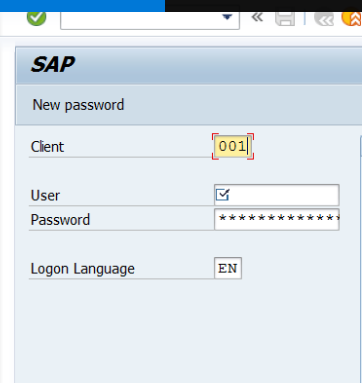
Enter user name and password and press Enter. You can able to see following screen.


Previous                                                 Next                                                 Home